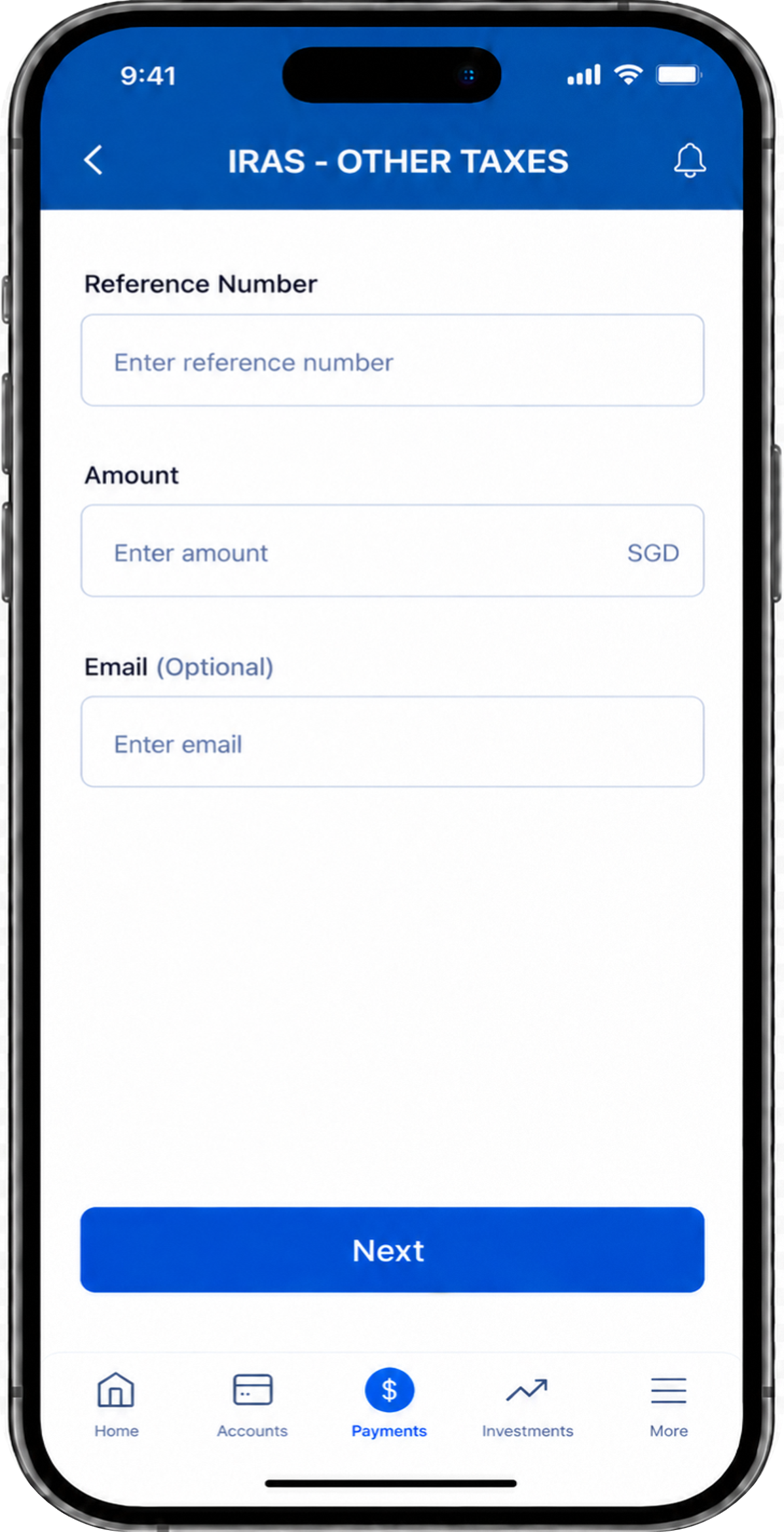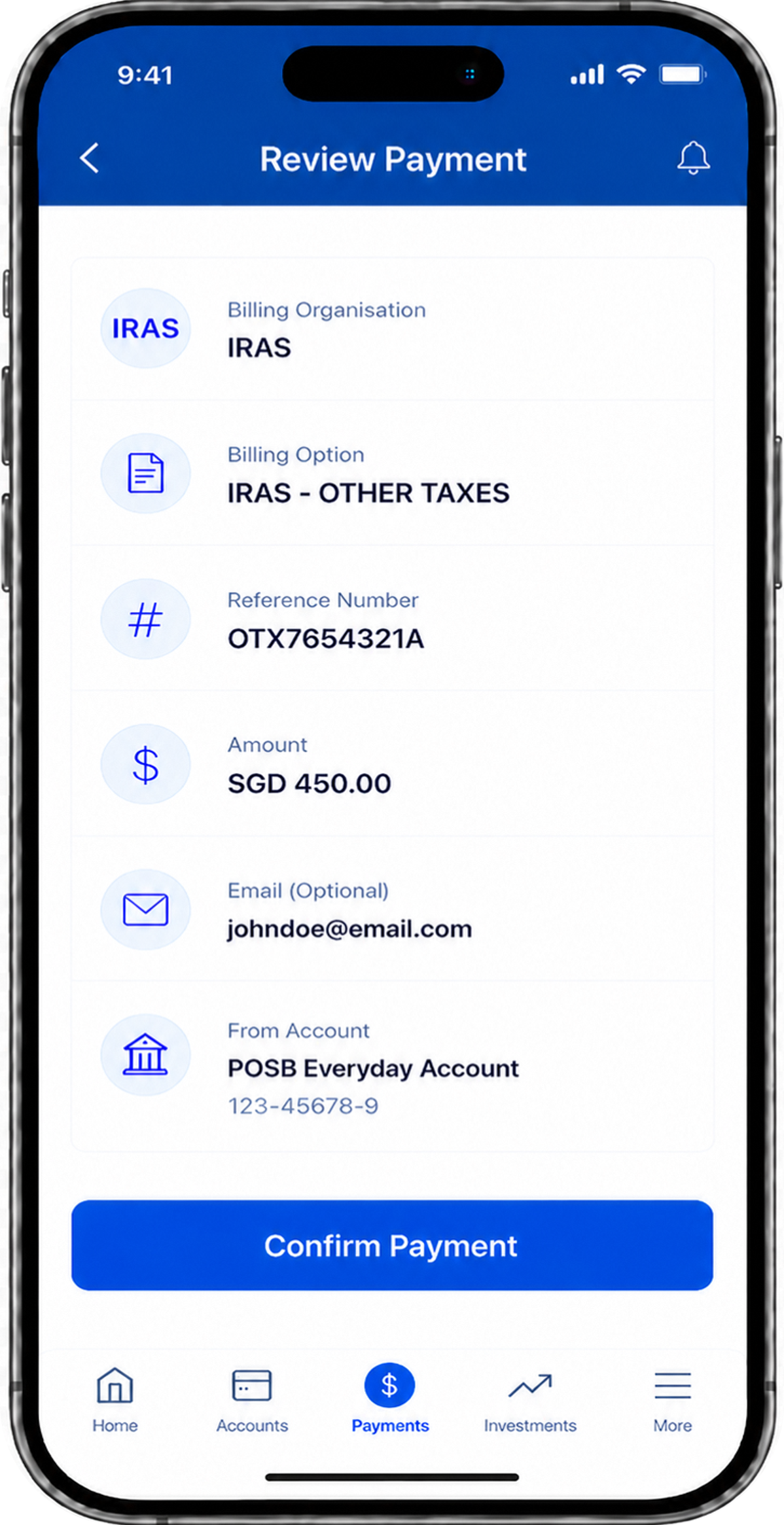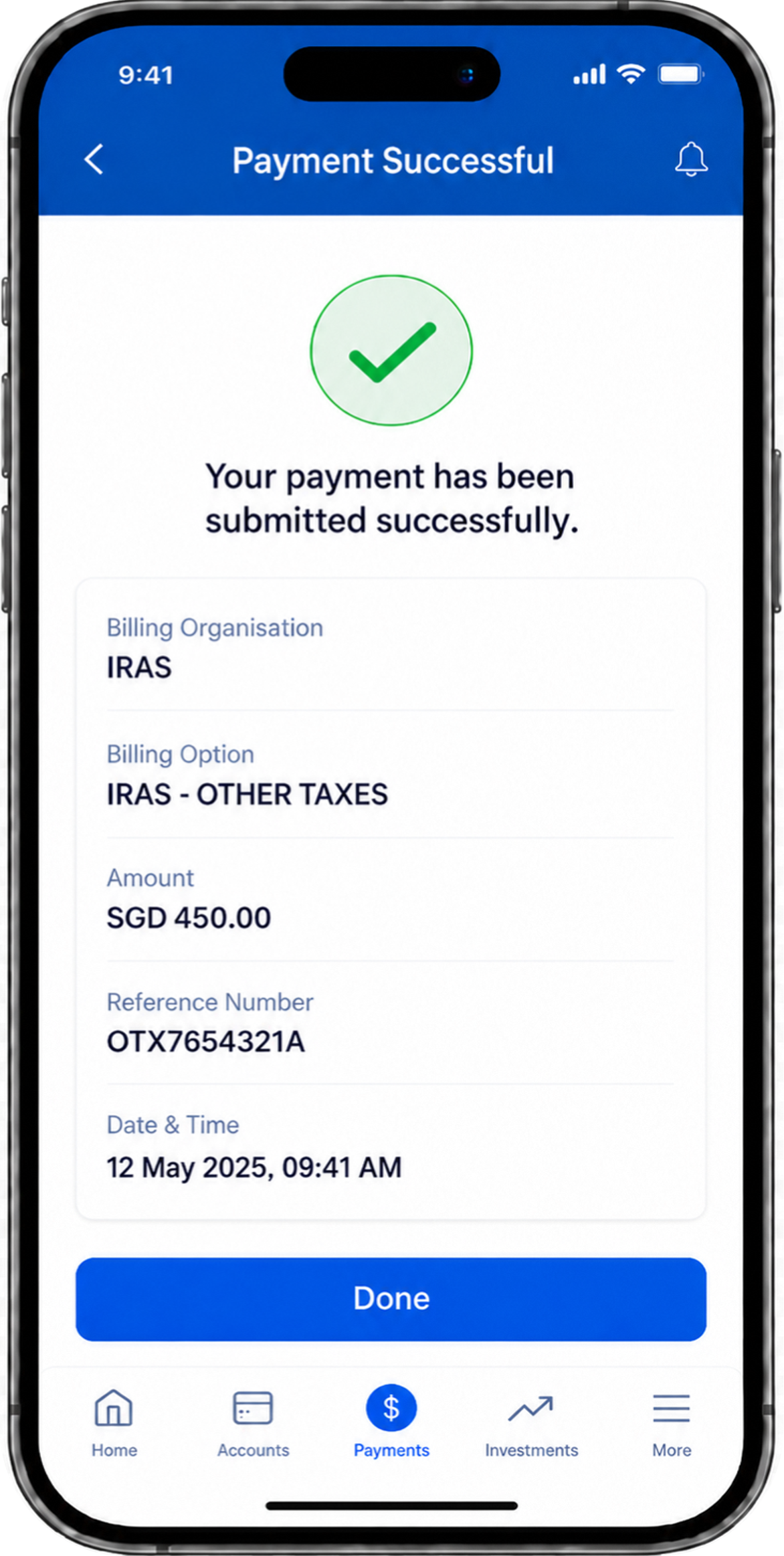
Internet Banking Bill Payment
Step-by-step guide to make payment via Internet Banking Bill Payment
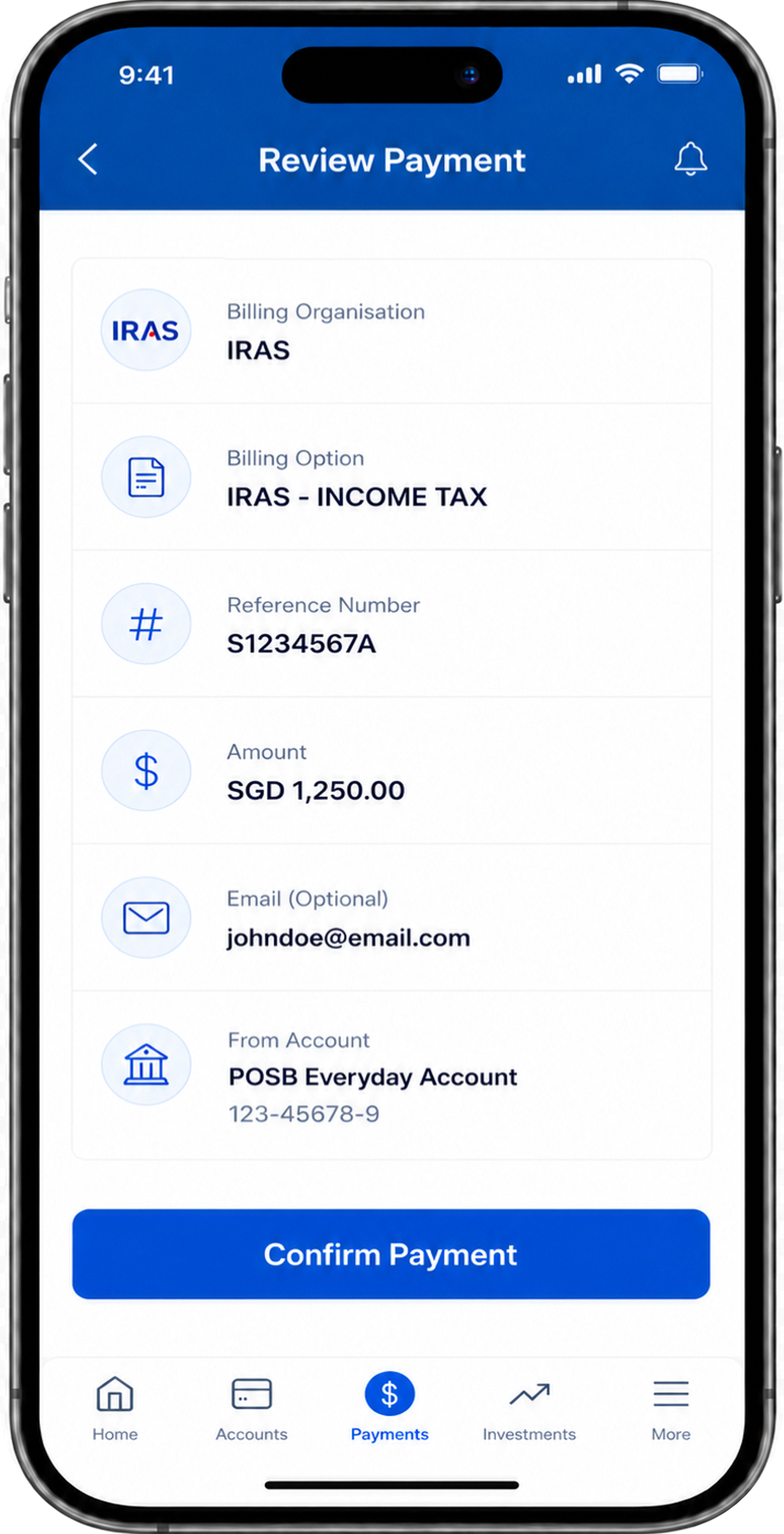
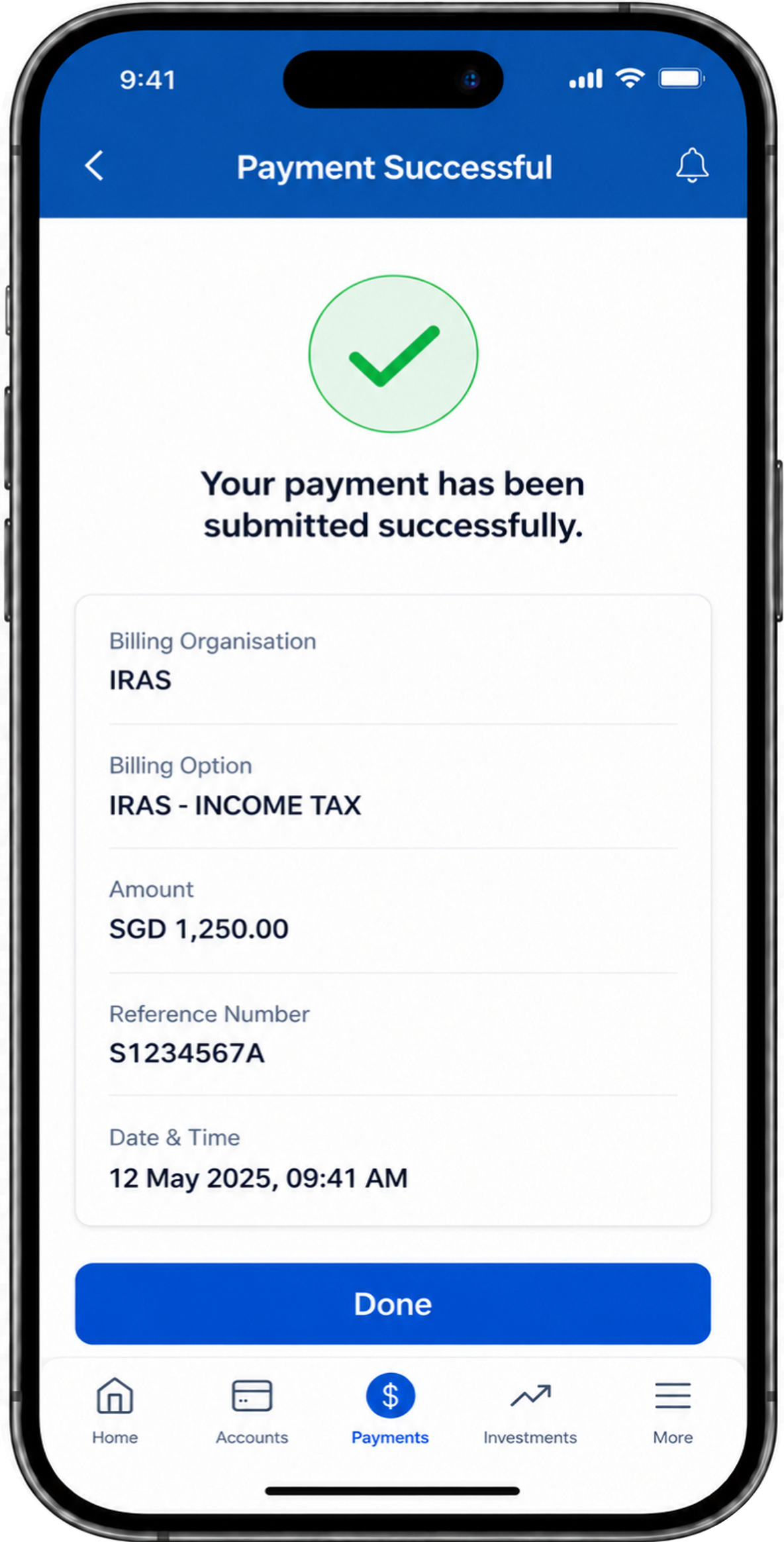
1. Payment for Individual Income Tax
Please note that the screenshots are for illustration only.
The actual steps and interface may vary depending on your banking portal.
For detailed guidance on making an Internet Banking Bill Payment, please refer to your preferred banking portal.
Step 1. Log in to your internet banking portal.
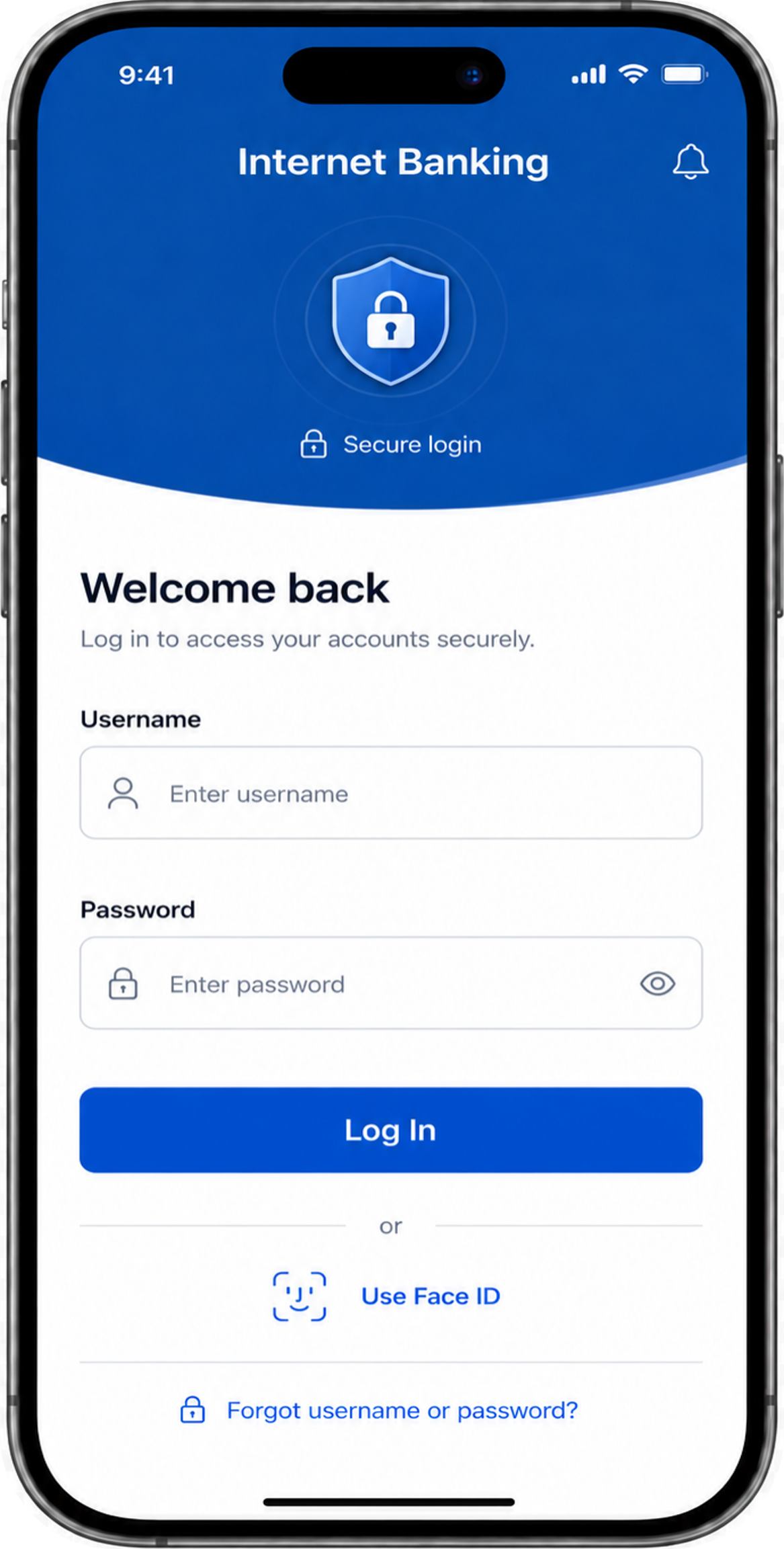
Step 2. Go to "Bill Payment" or "Pay Bills" section.
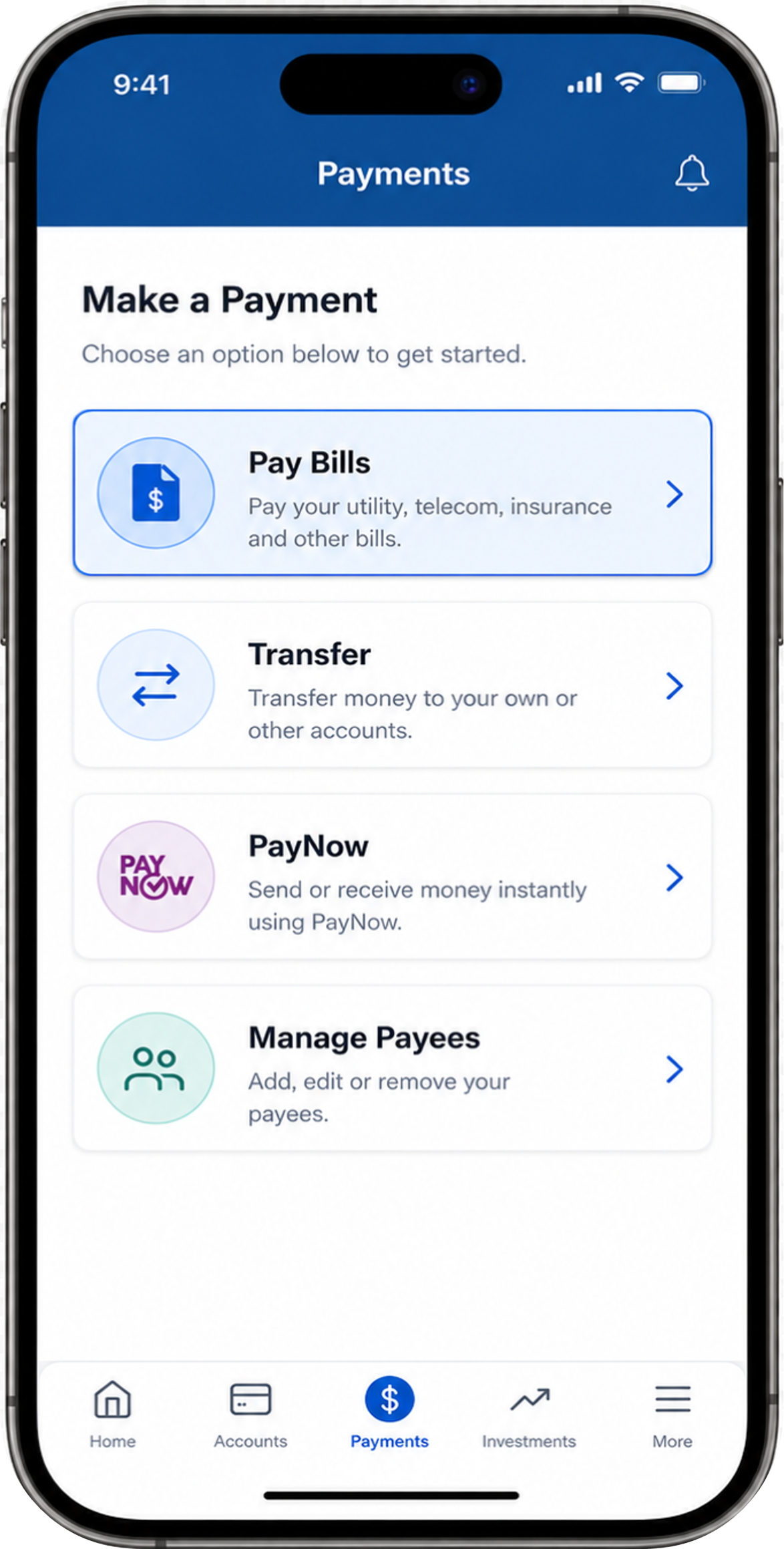
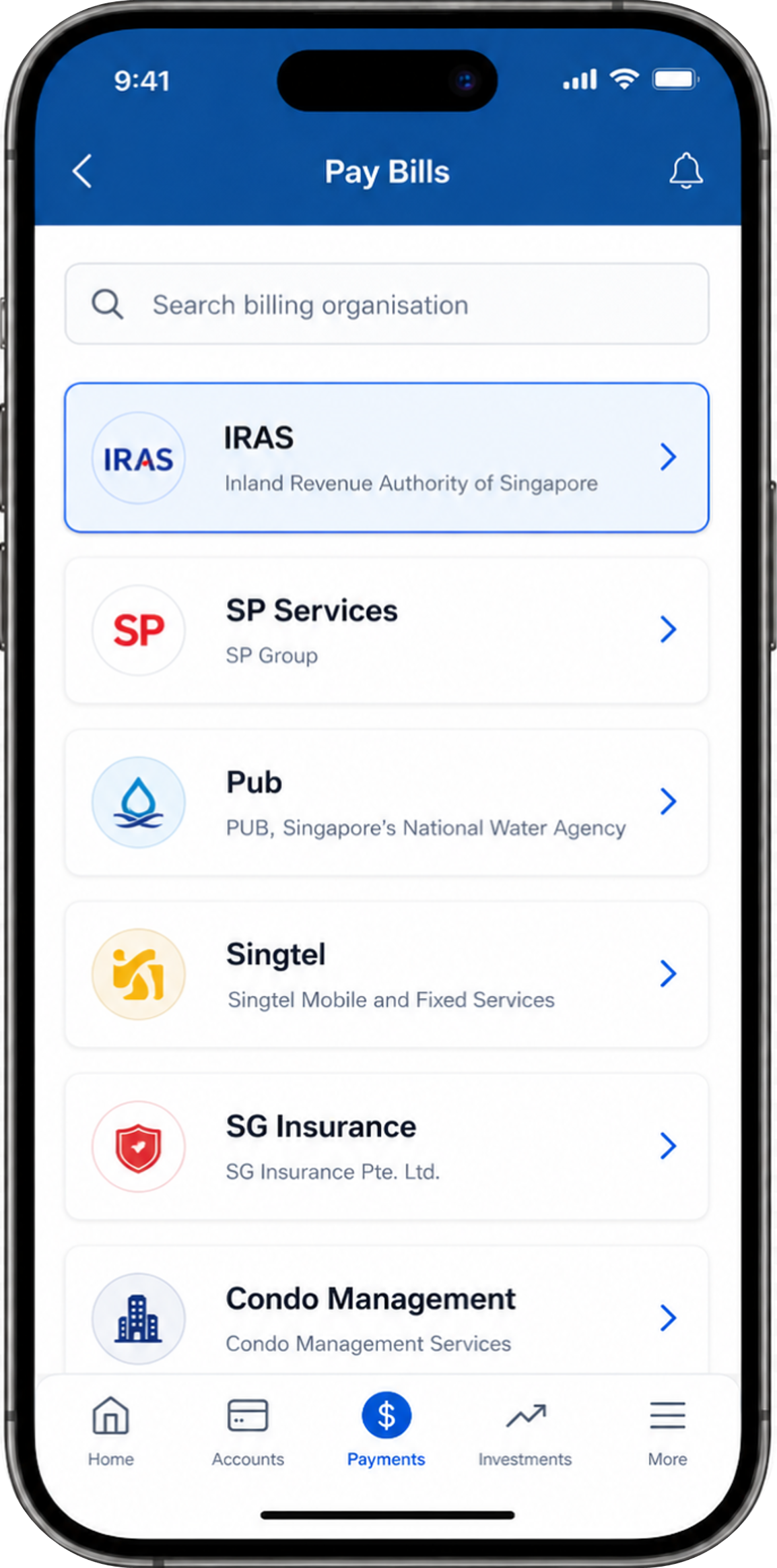
Step 3. Add "IRAS" as a payee (if not already added) or select "IRAS" as the Billing Organisation.
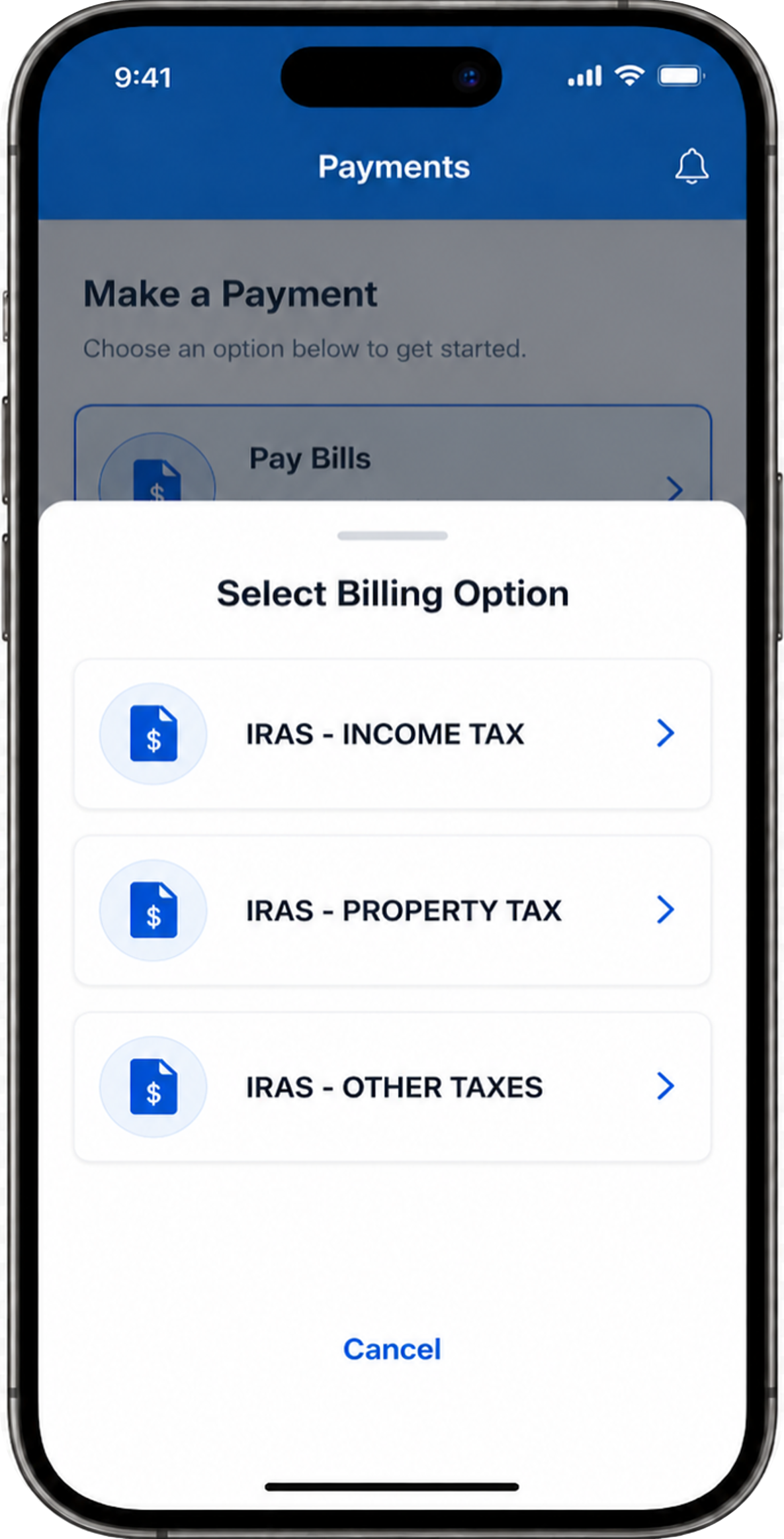
Step 4. Select "IRAS-INCOME TAX" as the billing option.
Note: "IRAS-INCOME TAX" is for Individual Income Tax payments only. If you are paying Property Tax, please refer to Section 2. If you are paying Corporate Tax, GST or other taxes, please refer to Section 3. Selecting the wrong billing option may result in delayed processing of your payment.
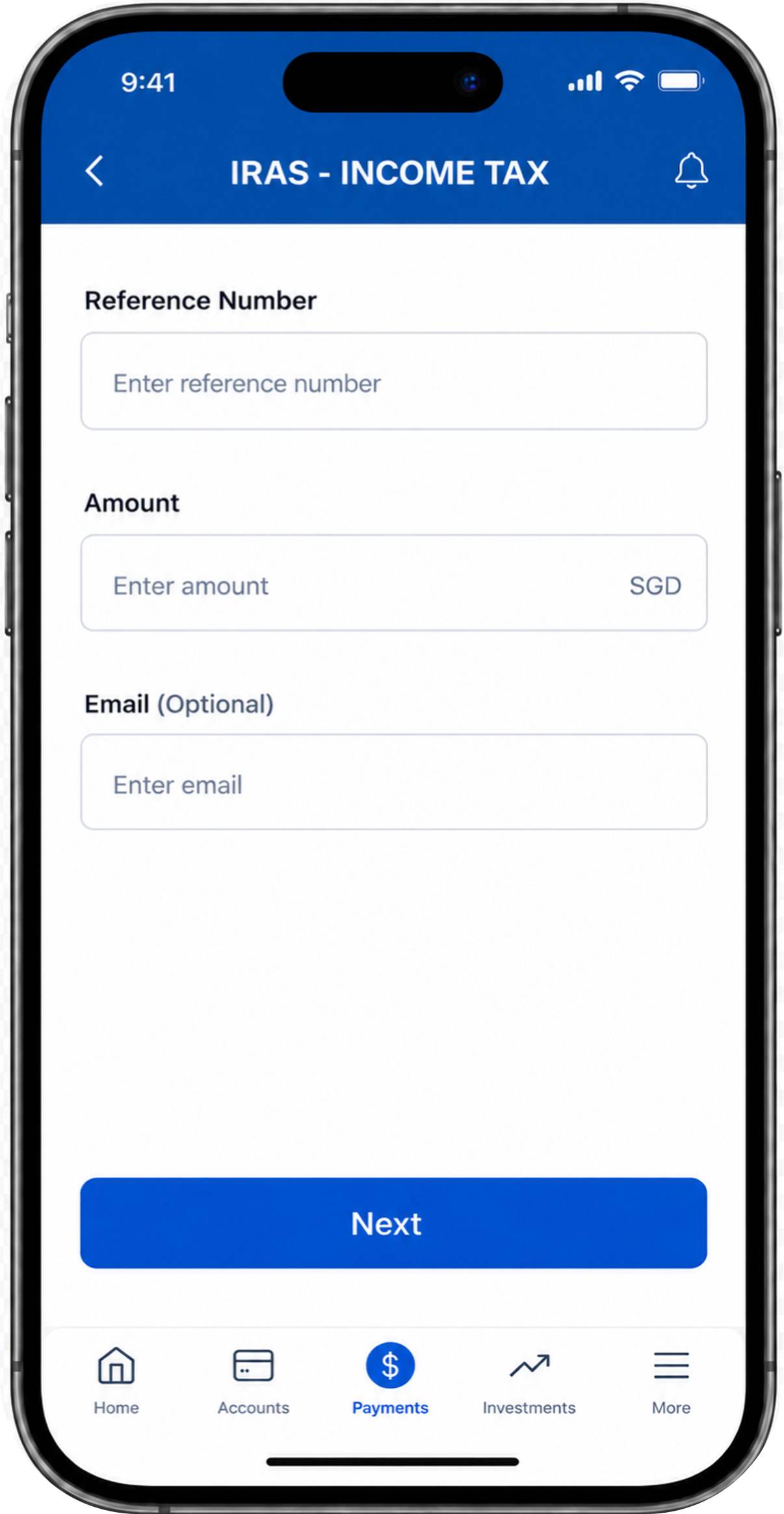
Step 5. Fill in your Tax Reference Number (in full), Payment Details and Review Payment.
Where to find Tax Reference or Payment Reference Number?
Please fill in your full, unmasked Tax Reference Number.
2. Payment for Property Tax
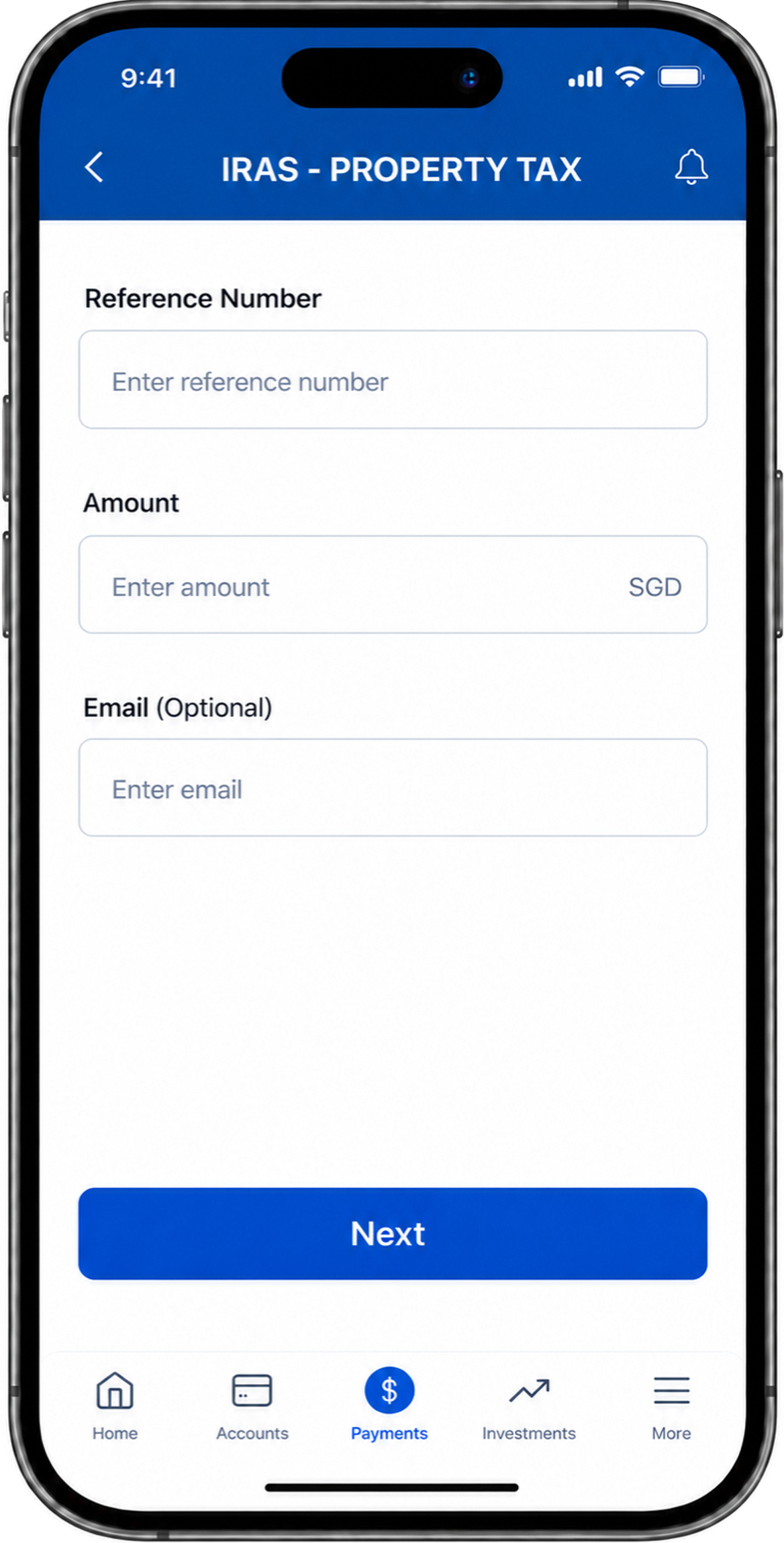
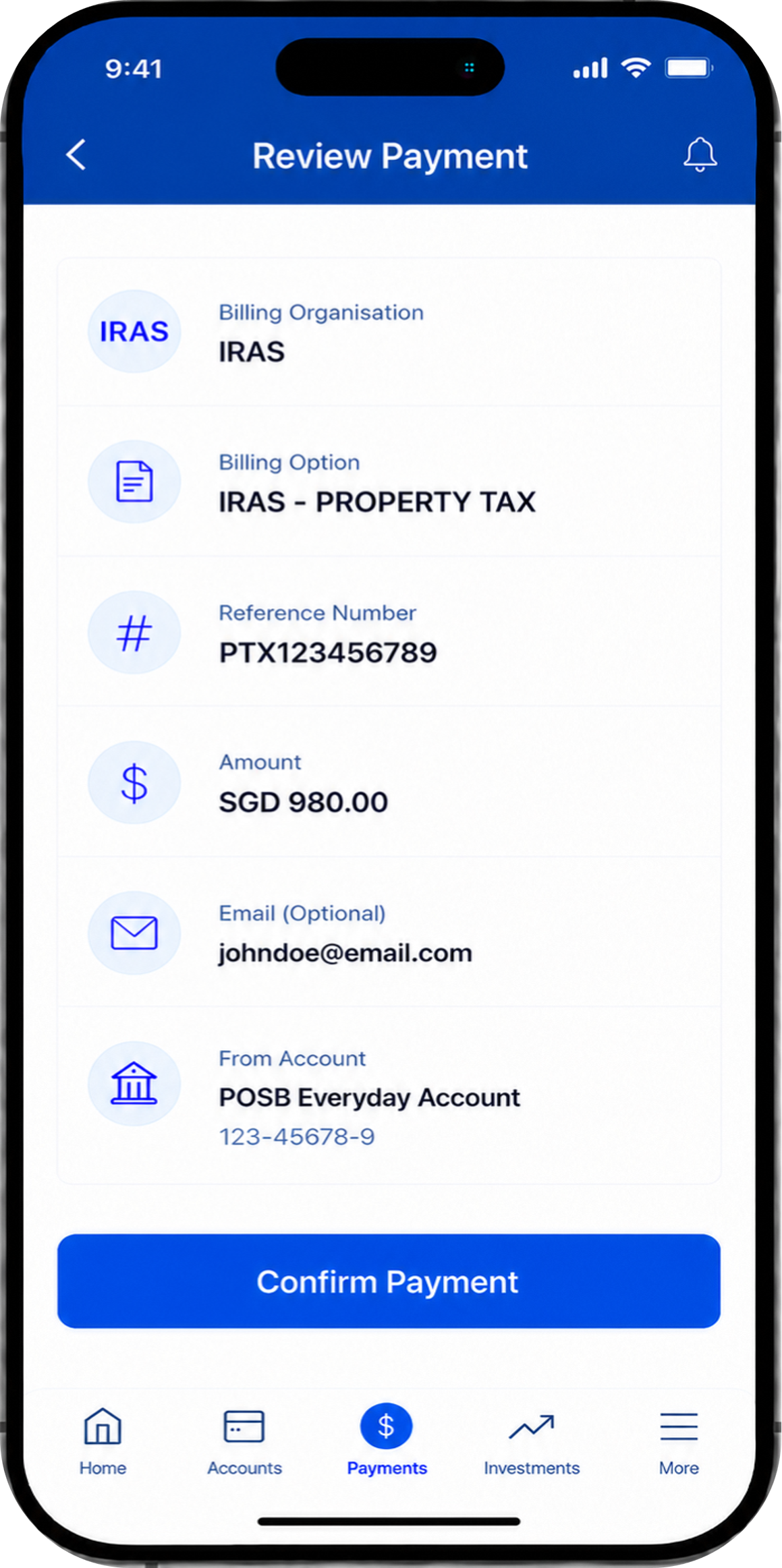
Please note that the screenshots are for illustration only.
The actual steps and interface may vary depending on your banking portal.
For detailed guidance on making an Internet Banking Bill Payment, please refer to your preferred banking portal.
Step 1. Log in to your internet banking portal.
Step 2. Go to "Bill Payment" or "Pay Bills" section.
Step 3. Add "IRAS" as a payee (if not already added) or select "IRAS" as the Billing Organisation.
Step 4. Select "IRAS-PROPERTY TAX" as the billing option.
Note: "IRAS-PROPERTY TAX" is for Property Tax payments only. If you are paying Individual Income Tax, please refer to Section 1. If you are paying Corporate Tax, GST or other taxes, please refer to Section 3. Selecting the wrong billing option may result in delayed processing of your payment.
Step 5. Fill in your Property Tax Reference Number (in full), Payment Details and Review Payment.
Where to find Property Tax Reference or Payment Reference Number?
Please fill in your full, unmasked Property Tax Reference Number.
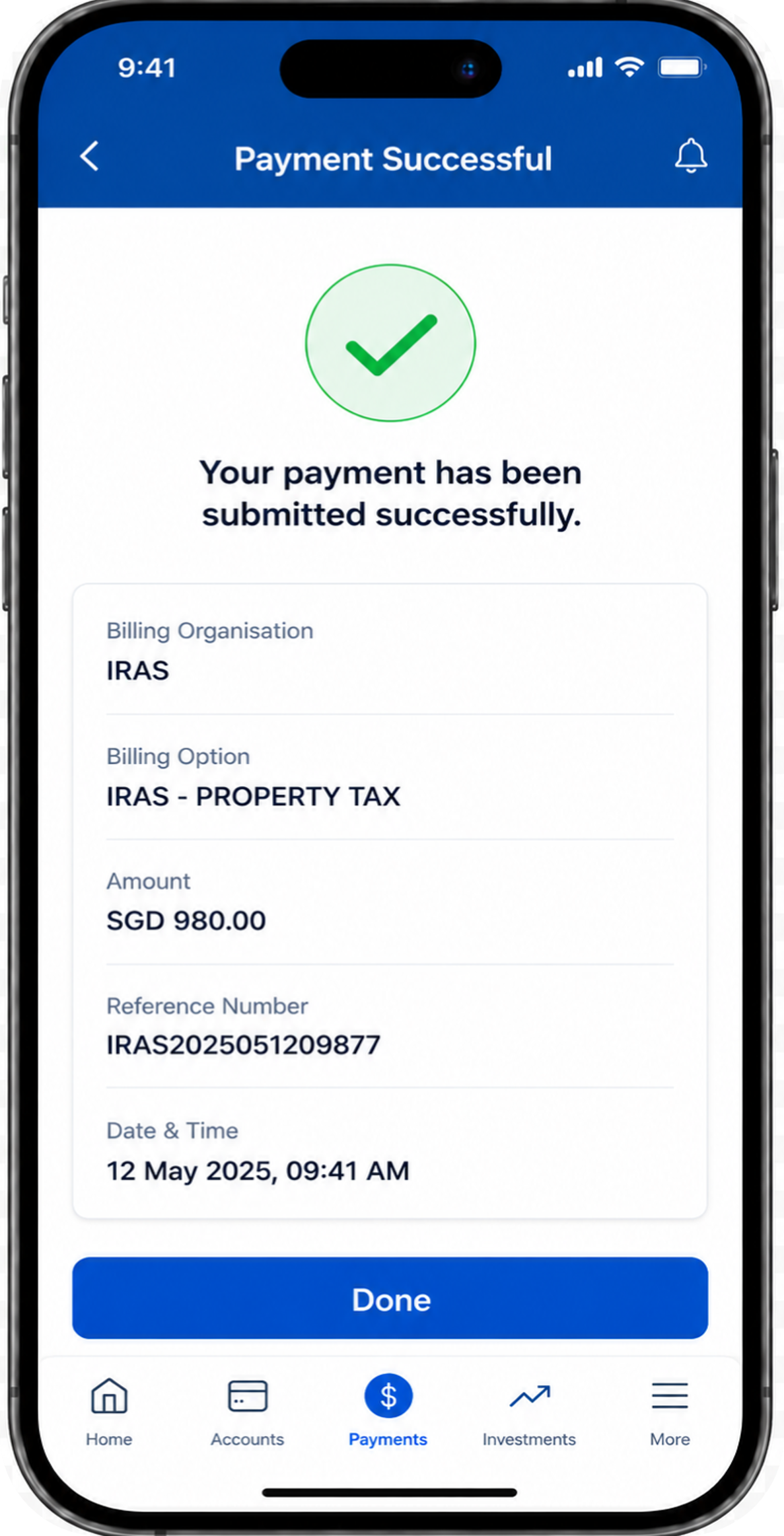
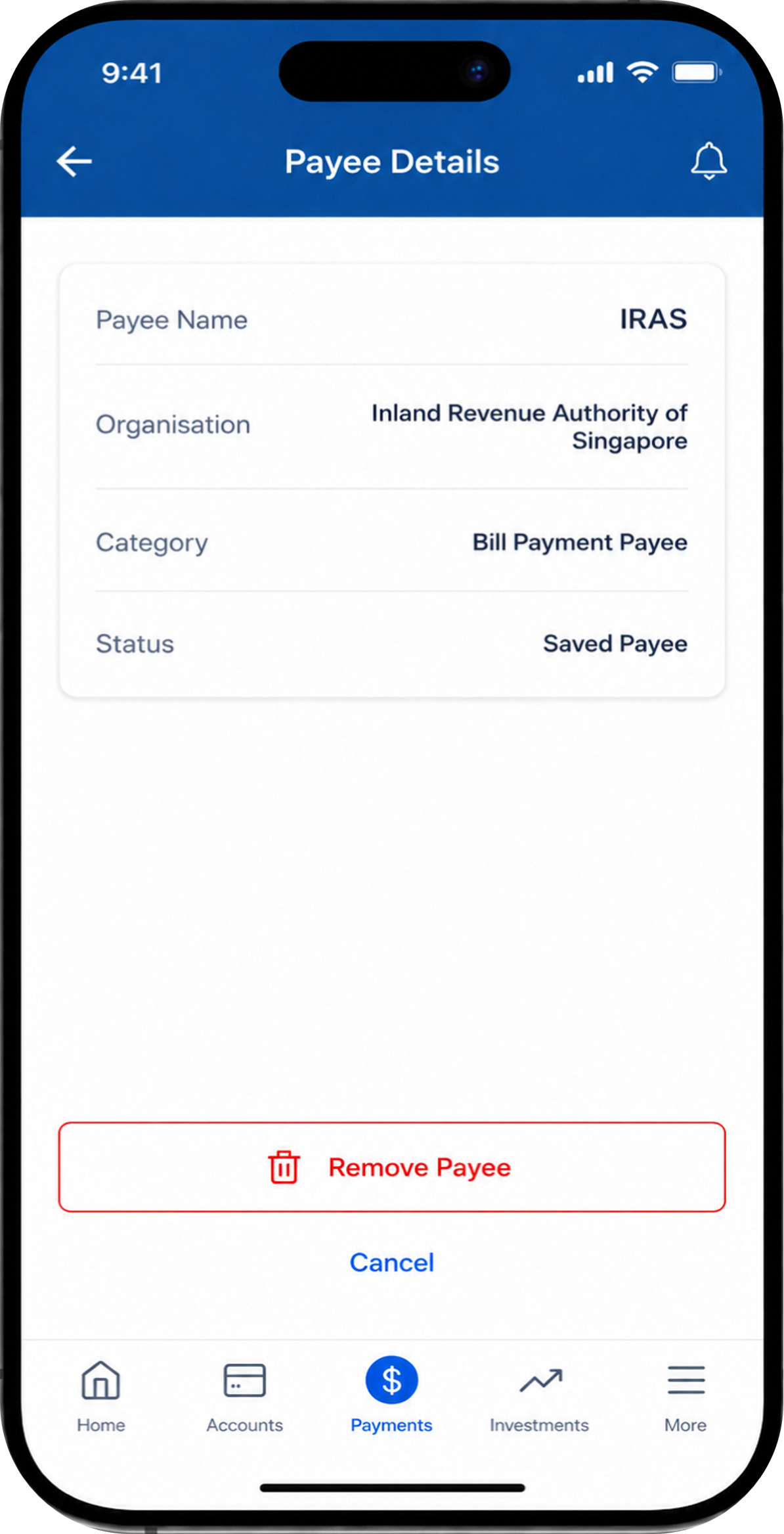
Step 6. Remove "IRAS" as a Payee after each successful payment.
After making your Property Tax payment, please remove IRAS from your saved payees in your banking portal.
Each payment has a unique Payment Reference Number, and each property has its own Property Tax Reference Number.
Keeping IRAS as a saved payee may result in future property tax payments being posted to the wrong property, if you have sold your property or moved.
3. Payment for Other Tax Types (Corporate Tax, GST, Withholding Tax and Enterprise Innovation Scheme)
Please note that the screenshots are for illustration only.
The actual steps and interface may vary depending on your banking portal.
For detailed guidance on making an Internet Banking Bill Payment, please refer to your preferred banking portal.
Step 1. Log in to your internet banking portal.
Step 2. Go to "Bill Payment" or "Pay Bills" section.
Step 3. Add "IRAS" as a payee (if not already added) or select "IRAS" as the Billing Organisation.
Step 4. Select "IRAS-OTHER TAXES" as the billing option.
Note: Please ensure you are making payment for Corporate Tax, GST, Withholding Tax or Enterprise Innovation Scheme before selecting "IRAS-OTHER TAXES" as your billing option. Do not select "IRAS-INCOME TAX" (intended for Individual Income Tax only) or "IRAS-PROPERTY TAX" (intended for Property Tax only), as selecting the wrong billing option may result in delayed processing of your payment.
Step 5. Fill in your Payment Reference Number (in full), Payment Details and Review Payment.
Where to find Tax Reference or Payment Reference Number?
Please fill in your full, unmasked Payment Reference Number.