


AXS
Step-by-step guide to make payment via AXS
1. Payment for Individual Income Tax and/or Property Tax
Step 1. Log in to myTax Portal via Singpass or Corppass.
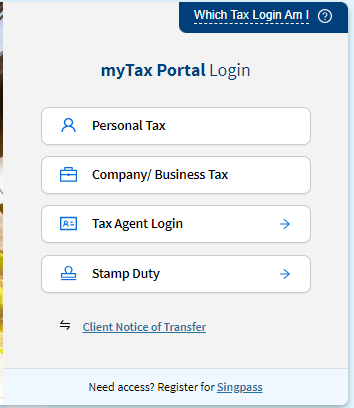
Step 2. Click on "Account" and select "Pay Taxes" option.
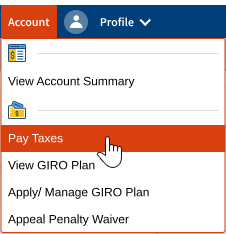
Step 3. Click on "PAY" beside the Tax Type you wish to make payment for.
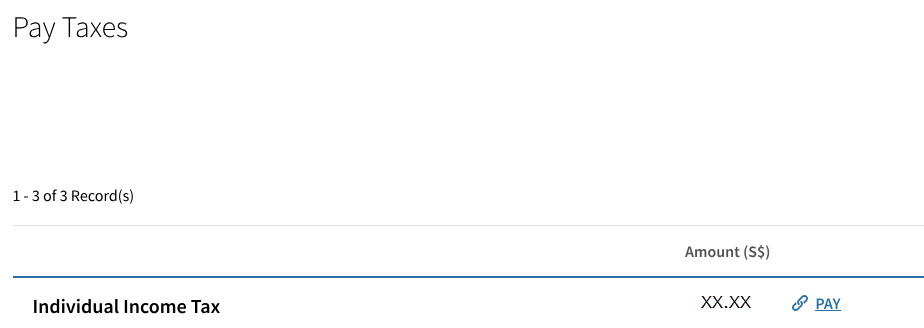
Step 4. Select "AXS" and click "Continue".

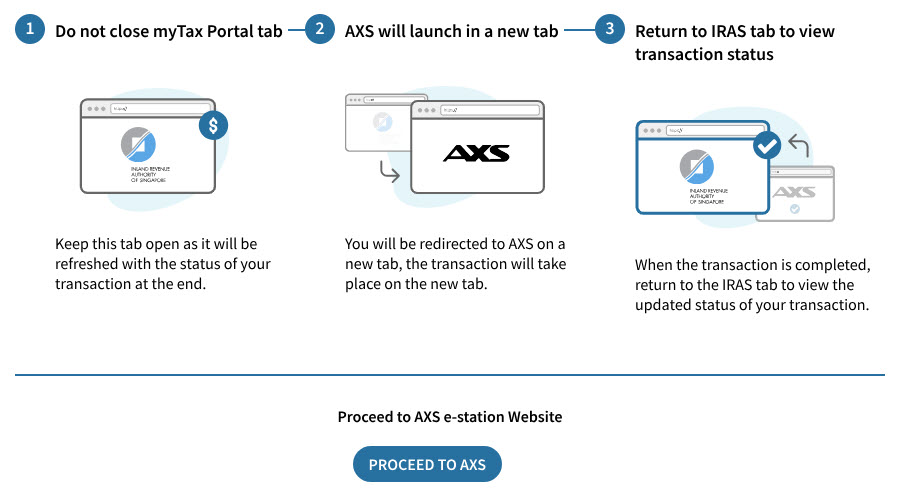
Step 5. Click on "Proceed to AXS" and a new tab will be created, displaying either AXS e-Station or m-Station (App).
If you are using your mobile device which has a pre-installed AXS app, you will be redirected to the AXS m-Station mobile app instead of the AXS e-Station in an internet browser.
Step 6. The payment details will be shown in the AXS payment summary page.
Select “Proceed to Pay” and choose any of the payment modes listed.
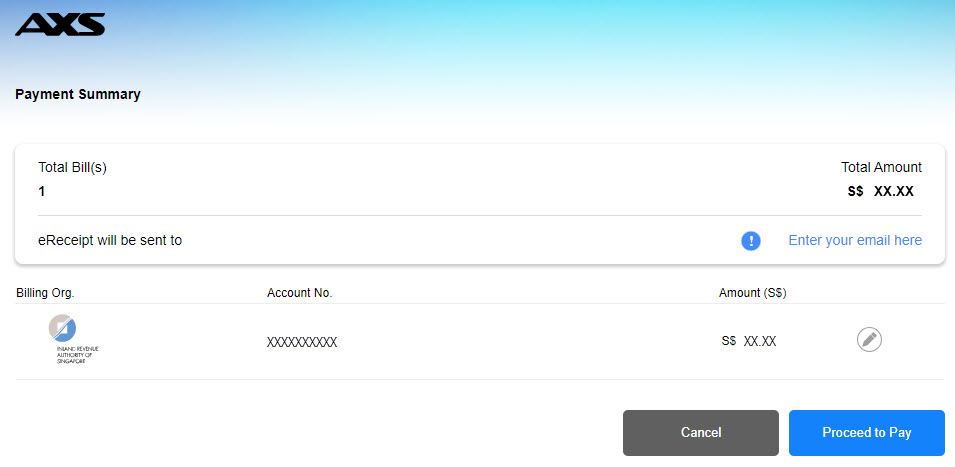
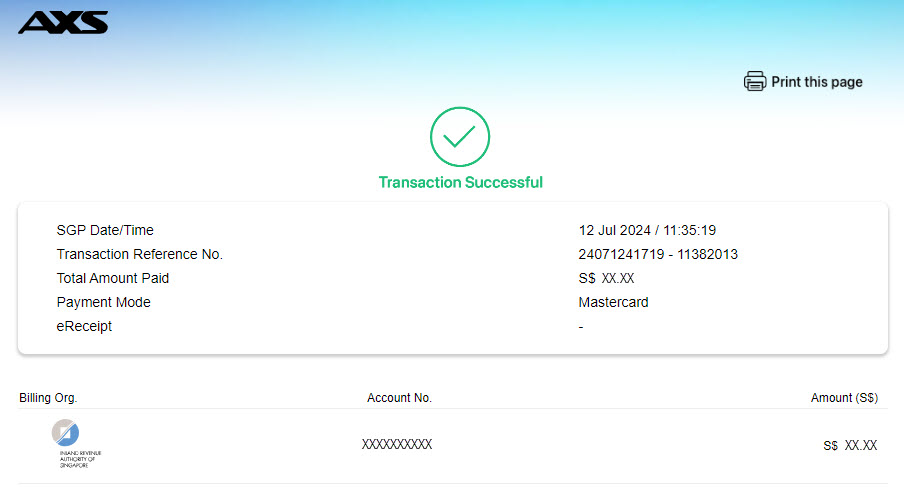
Step 7. If the payment is successful, you will see an acknowledgement message.
If the payment is not successful, you will be redirected back to myTax Portal > Pay Taxes payment selection page and a failed message will be displayed at the top.
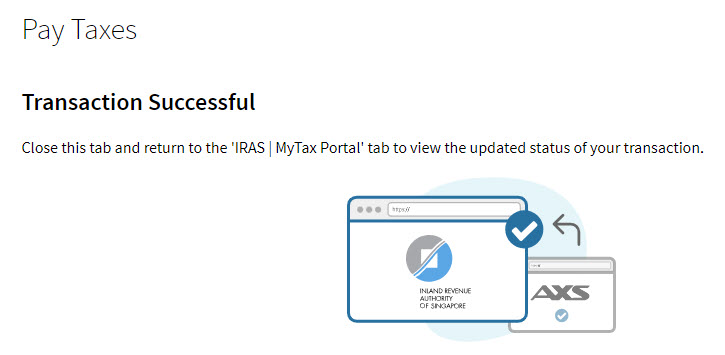
Step 8. Close the AXS tab and return to the "IRAS | MyTax Portal" tab to view the updated status of your transaction.
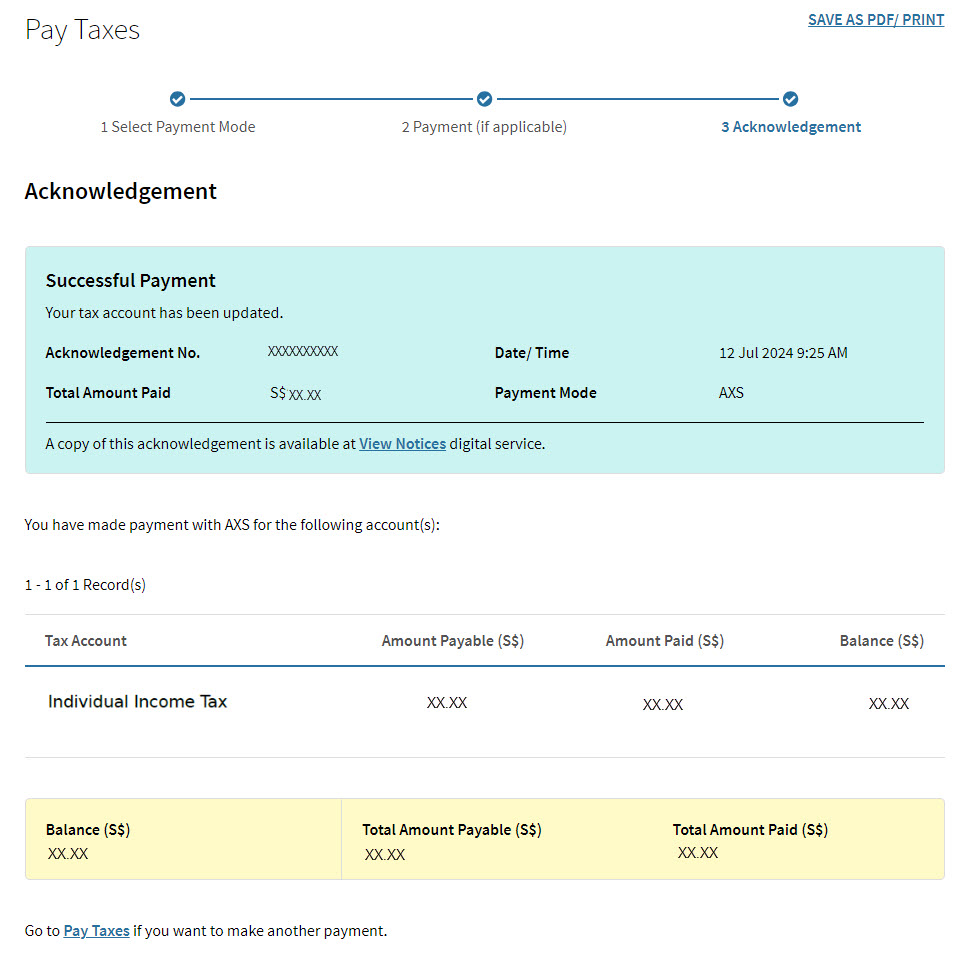
Step 9. At the IRAS tab, you will see the Successful Payment Acknowledgement page.
The successful transaction would be reflected in your tax account immediately.
2. Payment for Business's Property Tax/Tax Clearance Directives/S19/Non-compliance IR21
Step 1: Log in to myTax Portal via Company/ Business Tax.
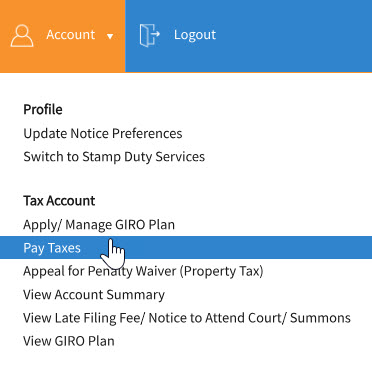
Step 2. Click on "Account" and select "Pay Taxes" option.
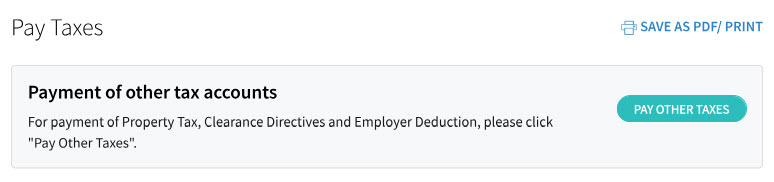
Step 3. Select "PAY OTHER TAXES".
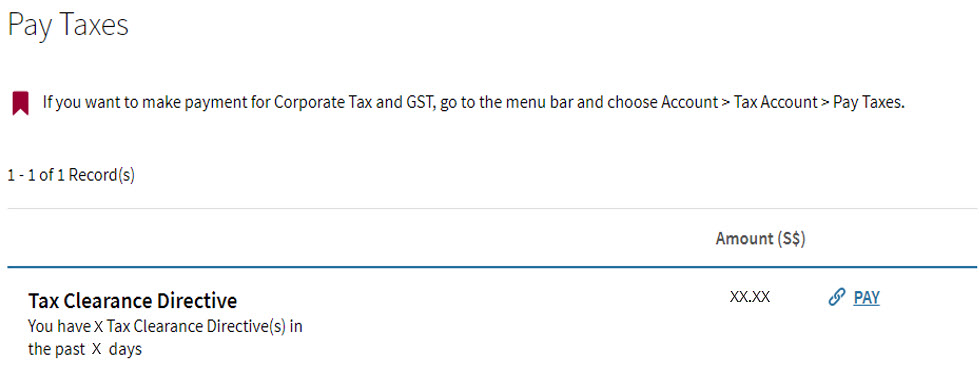
Step 4. Click on "PAY" beside the Tax Type you wish to make payment for.
Step 5. Select "AXS" and click "Continue".
Step 6. Click "Proceed to AXS".
You will be redirected to AXS e-Station or m-Station (App).
If you are using your mobile device which has a pre-installed AXS app, you will be redirected to the AXS m-Station mobile app instead of the AXS e-Station in an internet browser.
Step 7. The payment details will be populated in the AXS payment summary page.
Select "Proceed to Pay" and choose any of the payment modes listed.
Step 8. If the payment is successful, you will see an acknowledgement page.
If the payment is not successful, you will be redirected back to myTax Portal > Pay Taxes payment selection page and a failed message will be displayed at the top.
Step 9. Close the AXS tab and return to the "IRAS | MyTax Portal" tab to view the updated status of your transaction.
Step 10. Under the IRAS tab, you will see the Successful Payment Acknowledgement page.
The successful transaction would be reflected in your tax account immediately.
3. Payment for Corporate Tax, Goods and Services Tax and other tax types not listed above
Step 1. Log in to myTax Portal via Company/ Business Tax.
Step 2. Click on "Account" and select "Pay Taxes" option.
Step 3. Click on "PAY" beside the Tax Type you wish to make payment for.
Step 4. Select “AXS”.
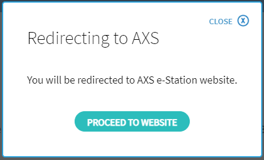
Step 5. Click on “Proceed to Website”.
You will be redirected to the AXS e-Station or m-Station (App).
If you are using your mobile device which has a pre-installed AXS app, you will be redirected to the AXS m-Station mobile app instead of the AXS e-Station in an internet browser.
Step 6. The payment details will be populated in the AXS Payment Summary page.
Select “Proceed to Pay” and choose any of the payment modes listed.
Step 7. If the payment is successful, you will see an acknowledgement message.
If the payment is not successful, you will be redirected back to myTax Portal > Pay Taxes payment selection page and a failed message will be displayed at the top.
Ready to pay your taxes using AXS? Log in to myTax Portal to get started.